Slide or Grid
A block used for initial setup of the spinner carousel effect or grid layout.
Slide or Grid Settings
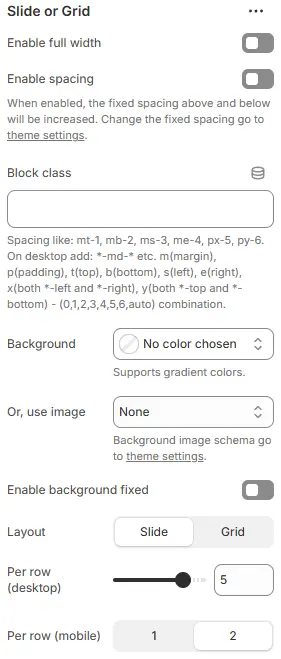
- Enable full width: Toggle to make the block span the entire viewport width, ignoring standard container margins.
- Enable spacing: Activates fixed vertical spacing above and below the block; specific values are managed in global theme settings.
- Block class: Assigns custom CSS utility classes for advanced styling.
- Background: Sets the background style for the entire section.
- Or, use image: Replaces the solid background color with an image.
- Enable background fixed: Locks the background image in place while content scrolls over it (Parallax effect).
- All four settings above follow: Blocks → Overview → General Settings
- Layout: Selects the display mode for the child items.
Slide→ Items appear in a horizontal carousel/slider with navigation arrows.Grid→ Items are displayed statically in rows and columns without sliding.
- Per row (desktop): Defines the number of items displayed per row on large screens.
- Adjustable value (e.g., 1 to 6+); screenshot shows
5.
- Adjustable value (e.g., 1 to 6+); screenshot shows
- Per row (mobile): Defines the number of items displayed per row on small screens.
1→ Single column layout (larger items, better for detailed cards).2→ Dual column layout (compact grid, better for simple lists).
When layout is grid

- Grid gap (desktop): Controls the spacing between grid items on large screens.
- Grid gap (tablet): Sets the spacing between grid items on medium-sized devices (tablets).
- Grid gap (smartphone): Defines the spacing between grid items on smartphone devices.
💡 Note: These settings only appear when "Layout" is set to "Grid". For "Slide" layout, spacing is controlled by slide-specific parameters instead.
When layout is slide
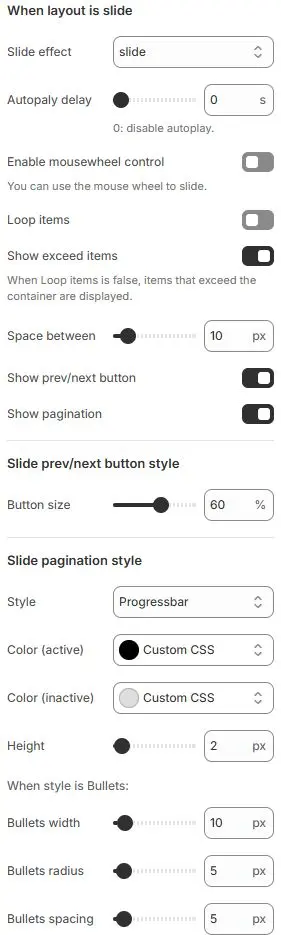
- Slide effect: Defines the transition animation style when sliding between items.
slide→ Standard horizontal sliding transition (default)fade→ Items fade in/out without movementcube→ 3D cube rotation effect between slidescoverflow→ Centered active slide with side items angled outward (like iTunes cover flow)flip→ Horizontal or vertical flip animation between slidescards→ Card-style stacking with depth and perspectivecreative→ Custom or advanced animated transitions (theme-specific)
- Autoplay delay: Sets time interval (in seconds) before automatically advancing to next slide.
0 s→ Autoplay disabled (manual navigation only).>0 s→ Enables automatic cycling; e.g.,5= advances every 5 seconds.
- Enable mousewheel control: Allows users to navigate slides using mouse scroll wheel.
- Loop items: Enables infinite looping — last item connects back to first.
- Show exceed items: Displays partially visible items beyond container edge when Loop is off.
- Space between: Horizontal gap between adjacent slides in pixels.
- Show prev/next button: Toggles visibility of left/right navigation arrows.
- Show pagination: Enables/disables dot indicators below slider showing current position.
Slide prev/next button style
- Button size: Scales navigation arrows as percentage of default size.
Slide pagination style
- Style: Chooses pagination indicator type.
Bullets→ Displays pagination as clickable dots or shapes (e.g., circles, squares)Fraction→ Shows current/total slide count (e.g., “3 / 10”)Progressbar→ Linear bar that fills proportionally as you advance through slides (currently selected)
- Color (active): Color of active/current indicator.
- Color (inactive): Color of non-active indicators.
- Height: Thickness of progress bar (when Style = Progressbar).
When style is Bullets: (Only visible if “Style” is set to “Bullets”)
- Bullets width: Width of each bullet point in pixels.
- Bullets radius: Border-radius for rounded corners (makes circles if equal to half width).
- Bullets spacing: Horizontal gap between consecutive bullets.
Child blocks
The supported sub blocks are:

Slide - Image/Text
The block used for adding graphic and text layout is set as follows:
Settings

- Class name: Custom CSS class for spacing or layout overrides.
- Style: Apply a predefined card style scheme when layout is set to Grid. Theme Settings → Style scheme settings → Cards Style Schema
- Text layout: Layout of Text and Images
Over image→ Text/content is overlaid directly on top of the background image (default for hero/slider cards)Above image→ Text appears in a separate block positioned above the imageBelow image→ Text appears in a separate block positioned below the imageLeft of image→ Text is placed to the left side of the image (horizontal layout)Right of image→ Text is placed to the right side of the image (horizontal layout)No image→ Hides or removes the image; text displays alone without background visual
- Overlay background: When the Text layout is Over image, set a custom background that supports transparent gradients.
- Horizontal: Horizontal alignment of text
- Vertical: Vertical alignment of text
💡 Tip: When using “Over image” layout, combine with “Overlay background” and appropriate horizontal/vertical alignment to ensure text remains legible and visually balanced across different screen sizes.
Image
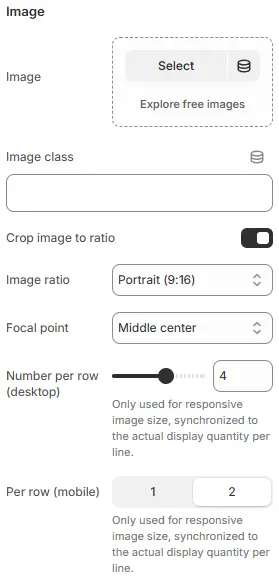
- Image: Upload or choose an image from your media library.
- Image class: Optional CSS class name for custom styling (e.g.,
custom-image-style). - Crop image to ratio: Toggle switch: When enabled, forces the image to be cropped to the specified aspect ratio.
- Image ratio: Aspect ratio applied to image when cropping is enabled.
- Auto
- Custom (3:1)
- Ultrawide (21:9)
- Double-width (2:1)
- Widescreen / HD (16:9)
- Classic / DSLR (3:2)
- ISO Paper (1.4:1)
- Standard Definition/SD (4:3)
- Landscape (5:4)
- Square (1:1)
- Instagram Portrait (4:5)
- Portrait (3:4)
- Pinterest Pin (2:3)
- Portrait (9:16)
- Focal point: Defines which part of the image remains visible during cropping.
(e.g.,
Top left,Top center,Top right,Middle left,Middle center,Middle right,Bottom left,Bottom center,Bottom right) - Number per row (desktop):Only used for responsive image size, synchronized to the actual display quantity per line.
- Per row (mobile): Only used for responsive image size, synchronized to the actual display quantity per line.
Subheading
The setting for subheading is the same as that for heading block, please refer to the following settings: Blocks → Basic Block → Heading.
Heading
The setting for Heading is the same as that for [Heading] block, please refer to the following settings: Blocks → Basic Block → Heading.
Rich text
The setting for Rich text is the same as that for [Text] block, please refer to the following settings: Blocks → Basic Block → Text.
Button
The setting for Button is the same as that for [Button] block, please refer to the following settings: Blocks → Basic Block → Button.
Slide - blogs
Used to call Block for displaying blog posts.
Settings

- Blog:
Select→ Choose a specific blog or content source to display in this slide. - Limit of articles: Controls the maximum number of blog posts displayed in this slide/carousel/grid.
⚠️ Note: If fewer than 6 articles exist in the selected blog, only available items will be shown.
Child block
The fixed sub block under Slide - blogs: Blog posts cards, mainly used to independently set the style of blog cards.
Blog posts cards: For detailed settings, please refer to Blocks → Specific Block → Blog Posts Cards.
Slide - products
Used to call and display the product list.
Settings

- Collection:
Select→ Choose a product collection (e.g., “Summer Sale”, “Best Sellers”, “New Arrivals”) to display in this slide. - Or, product list:
Select→ Alternatively, choose a manually curated or dynamically filtered.
⚠️ Note: Only one of “Collection” or “Product List” should be active at a time — they are mutually exclusive sources.
- Limit of product: Controls the maximum number of products displayed in this slide/carousel/grid.
⚠️ Note: If fewer than 6 products exist in the selected collection/list, only available items will be shown.
Child block
Slide products contains a fixed sub block: Product cards, which is mainly used to independently set the style of product cards.
Product cards: For detailed settings, please refer to Blocks → Specific Block → Product Cards.
Slide - testimonial
Used to add content and settings for testimonials.
Settings

- Class name: Optional CSS class for custom styling of the card container.
- Style: Selects the visual design template (e.g.,
Card schema 4). - Text layout: Determines if and where an image/avatar appears relative to the text (e.g.,
No Image).No image→ Text only, no image displayedOver image→ Text overlays on top of the imageAbove image→ Text appears above the imageBelow image→ Text appears below the imageLeft of image→ Text appears to the left of the imageRight of image→ Text appears to the right of the image
- Overlay background: Sets a background color behind text when displayed over an image to improve readability.
- Vertical alignment: Controls the vertical position of content within the card (
Top,Middle, orBottom).
Star

- Stars number: Sets how many stars to display (e.g., 5 = full 5-star rating).
- Size: Adjusts star size as percentage of default (e.g., 150% = larger stars).
- Color schema (inactive): Color for unselected/empty stars (e.g.,
Secondary). - Color schema (active): Color for filled/selected stars (e.g.,
Yellow). - Alignment (desktop/tablet/smartphone): Controls horizontal alignment of stars per device type — left, center, or right.
⚠️ Note: Color schemas link to global theme variables — change them in “color settings” for consistency.
Heading
The setting for Heading is the same as that for [Heading] block, please refer to the following settings: Blocks → Basic Block → Heading.
Rich text
The setting for Rich text is the same as that for [Text] block, please refer to the following settings: Blocks → Basic Block → Text.
User info

- Class name: Optional CSS class for custom styling (e.g.,
mt-3adds top margin). - Alignment (desktop/tablet/smartphone): Controls horizontal alignment of user info content per device — left, center, or right.
Avatar

- Avatar: Upload or select an image (e.g.,
Alex_Chén.webp, 100x100 px). - Or, Abbreviation: Fallback text if no image is used (e.g.,
AC). - Size: Preset dimensions —
Small,Medium,Large. - Shape: Display style —
CircleorPill.NoneRounded 1Rounded 2Rounded 3Rounded 4Rounded 5CirclePill
💡 Tip: Use abbreviation when image isn’t available; shape and size ensure visual consistency across devices.
User Name

- Name: The displayed user name (e.g.,
Alex Chen). - Size: Font size preset using theme variables (e.g.,
.h4= heading level 4).
→ Tip: Adjust via “Font size variable settings” for global consistency. - Color schema: Text color theme (e.g.,
Light,Dark, or custom).
→ Change in “color settings” to match your design system. - Enable gradient: Replace the Color schema with custom colors or gradients.
🎨 Design Note: Gradient and color schema work together — ensure contrast remains accessible when enabled.
User location

- Location: The geographic location displayed for the user (e.g.,
San Francisco, USA). - Size: Font size class from your design system (e.g.,
.fs-5— typically “font size 5”, smaller than headings). - Color schema: Text color theme applied to the location label (e.g.,
Light,Dark, or custom).
🌍 UX Tip: Use concise, recognizable location formats. Consider adding icons (e.g., 📍) for visual clarity if space allows.
Image (optional)
Set the background image for the current block.

- Image: Upload or select an image for display.
- Crop image to ratio: Toggle to enable automatic cropping based on selected aspect ratio.
- Image ratio: Defines the target aspect ratio for cropped image.
- Focal point: Sets the anchor point around which the image is cropped when resizing.
🖼️ Design Tip: Use focal point to ensure key subjects remain visible after cropping — especially important for profile pictures or hero banners.