Text
Mainly used for laying out blocks with rich text descriptions.
Main Settings
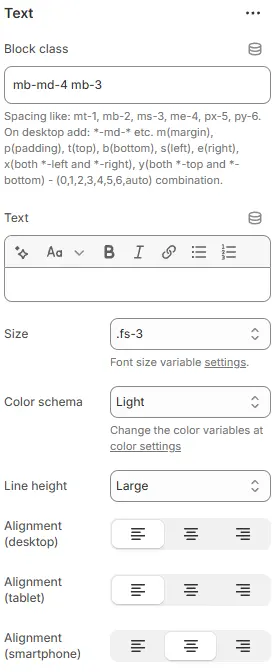
- Block class: CSS class applied to the block container. For details, see: Blocks → Overview → General Settings
- Text: The rich text to display.
- Tag: HTML tag—choose from
<h1>to<h6>or<div>for non-semantic text. - Size: Font size based on typography variables defined in Theme Settings → Basic Settings → Typography.
- Color schema: Text color selected from the theme’s predefined color variables in Theme Settings → Basic Settings → Colors.
- Line height: Controls vertical spacing between lines of text for readability.
- Current selection:
Large— increases line-height for better scanability, especially useful for longer paragraphs or low-vision users. - Other options may include
Small,Default,Compact.
- Current selection:
- Alignment (desktop): Horizontal alignment on desktop (left, center, right).
- Alignment (tablet): Horizontal alignment on tablet devices.
- Alignment (smartphone): Horizontal alignment on smartphone devices.
Rotating Keywords
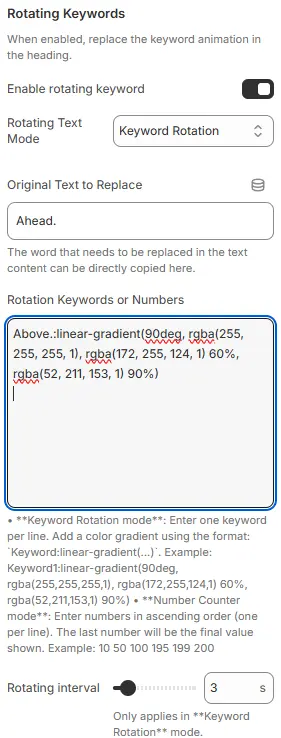
When enabled, replace the keyword animation in the heading.
-
Enable rotating keyword: Toggles the dynamic text replacement feature in the heading. When enabled, it cycles through predefined keywords or numbers to create animated, attention-grabbing headlines (e.g., “Stay Sorted. Stay [Ahead | Ahead | Ahead]” → rotates between variants).
-
Rotating Text Mode: Selects the animation behavior for the rotating content.
Keyword Rotation: — replaces a specific word with a list of alternating terms.Number Counter Animation: for incrementing values.
-
Original Text to Replace: Specifies the exact substring within the heading that will be dynamically replaced during rotation.
- Example:
Ahead.— this word will cycle through the list defined below. - Must match exactly (including punctuation/case) for replacement to trigger.
- Example:
-
Rotation Keywords or Numbers: Defines the pool of texts or values to rotate through. Supports two modes:
▶️ Keyword Rotation mode (current):
- Enter one keyword per line.
- Optional: Apply gradient coloring using syntax:
keyword:linear-gradient(angle, color1, color2, ...)
Example:→ Renders “Above.” with a smooth green-to-white horizontal gradient.Above.:linear-gradient(90deg, rgba(255,255,255,1), rgba(172,255,124,1) 60%, rgba(52,211,153,1) 90%)
▶️ Number Counter Animation mode (not active here):
- Enter ascending numbers, one per line.
- Last number becomes the final displayed value after counting up.
- Example:
10
50
100
195
199
200
-
Rotating interval: Sets the time (in seconds) each keyword/number is displayed before switching to the next.
- Current value:
3 s— each term shows for 3 seconds. - Only applies when “Keyword Rotation” mode is selected.
- Lower values = faster cycling; higher values = slower, more readable transitions.
- Current value:
💡 This component adds motion and visual interest to static headings — ideal for hero banners, CTAs, or promotional sections. Use gradients sparingly for emphasis, and ensure rotation speed doesn’t overwhelm users. Test accessibility: avoid rapid flashing for seizure-sensitive audiences.
Animations on Scroll
- Enable entrance animations as block enter the viewport.
- Configuration follows the standard Animations on Scroll settings.
- See: Blocks → Overview → Animations on scroll