Video With Text
The Video With Text block combines a video with descriptive content (heading, text, and button) in a flexible layout. Perfect for product demos, brand stories, or explainer content that benefits from both visual and textual context.
Settings
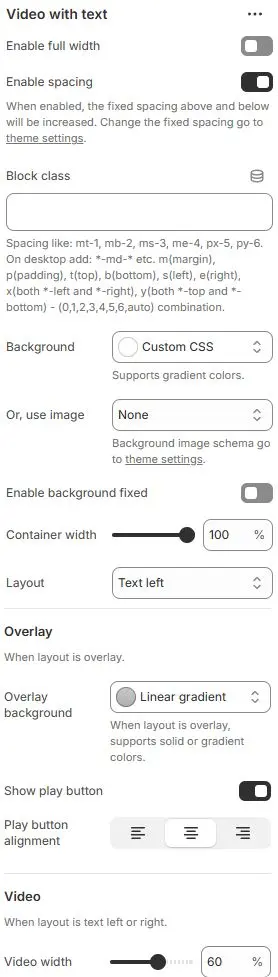
- Enable full width: Expand the block to 100% of the viewport width.
- Enable spacing: Adds fixed vertical spacing (margin) above and below the FAQ block.
- Block class: Custom CSS class for spacing or layout overrides.
- Background: Set a solid or gradient background color.
- Or, use image: Apply a background image using a preset from Theme Settings → Style scheme settings → Background Image Schema.
- Enable background fixed: Fixes the background image during scroll (parallax effect).
All settings above follow: Blocks → Overview → General Settings
- Container width: Width of the entire block container as a percentage (e.g.,
90%,100%). - Layout: Choose content arrangement:
Overlay: Text and buttons float over the videoText left: Text on the left, video on the rightText right: Text on the right, video on the left
Overlay (Applies only when Layout = Overlay)
- Overlay background: Overlay background setting, supporting transparent gradient.
- Show play button: Display a prominent play button below the text to trigger video playback.
- Play button alignment: Horizontal alignment of the play button—
Left,Center, orRight.
Video (Applies when Layout = Text left or Text right)
- Video width: Width of the video area as a percentage of the container (e.g.,
60%).
Child Blocks
Video
The main static block for embedded or self-hosted video (MP4, YouTube, Vimeo, etc.). Settings follow Blocks → Basic Block → Video.
Other blocks that can be freely added or removed are as follows:
